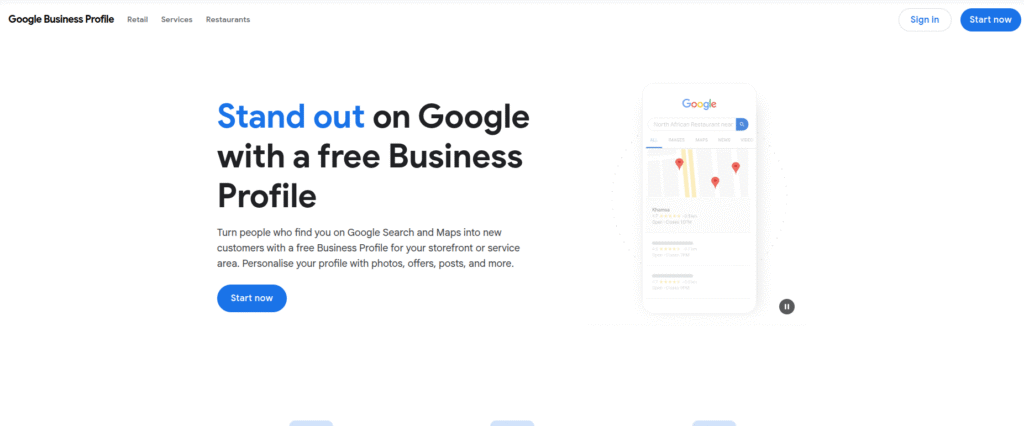

Need to remove Google Business Profile info that’s old, wrong, or just plain confusing?
Maybe you closed a location.
Maybe you rebranded.
Or maybe Google decided you needed three duplicate listings for the same shop (thanks Google). Whatever the reason, leaving outdated profiles hanging around is a recipe for trouble.
Customers get lost.
Calls go to the wrong number.
Your SEO takes a hit.
This quick guide walks you through deleting or removing a Google Business Profile the right way, step by step, so your online presence stays clean, accurate, and working for you, not against you.
Should You Delete, Remove, Update, or Merge a Google Business Profile?
Think of your Google Business Profile like the sign hanging outside your shop. Sometimes you take it down completely. Sometimes you just swap out the lettering. And other times, you combine two into one to keep the history and goodwill intact.
Knowing the difference can save you from losing valuable search visibility or confusing your customers.
When to Delete or Remove Completely
Some situations call for a clean break.
- Closed a physical location?
- Completely rebranded with a totally new name and identity?
- Business no longer exists?
- Accidentally created a duplicate listing?
In these cases, keeping the old profile active only leads to mixed signals in search results. People will find outdated phone numbers, visit old addresses, and leave reviews on a business that doesn’t match your current reality. It is cleaner and more professional to remove it entirely.
When to Update Instead
Not every change needs the nuclear option.
If your business is still the same at its core, but some details have changed, a quick update is the better route.
- New phone number
- Updated business hours
- Fresh photos, services, or menu items
Updating keeps your reviews, history, and rankings intact while ensuring that anyone who finds you on Google gets accurate info. You can also make these changes right inside your Google Business dashboard. If you’re not sure how to access it, follow the process of logging in and managing your listing outlined here: adding a user to your Google Business Profile is a good starting point.
When to Merge Profiles
Sometimes the problem isn’t that you need to delete or update. It is that you have two profiles competing against each other.
If both listings are for the same location, both have reviews, and both show up in search, merging them is usually the smartest move. This preserves your SEO momentum and combines all your reviews into one strong profile, instead of splitting them between duplicates.
Before you delete or remove a Google Business Profile, it’s important to understand how similar business listings can appear and why accurate information matters. For example, here are two profiles that share the same phone number but have different business names and addresses. This kind of duplication can cause confusion and impact your online presence.

How to Pull the Plug on Your Google Business Profile (the Right Way)
Sometimes, your Google Business Profile has run its course. Maybe you closed a location. Maybe you rebranded and the old listing is now just confusing people. Or maybe you’re cleaning up duplicates that keep stealing clicks from your main profile.
If you’re ready to remove it entirely, here’s exactly how to do it, without wrecking your search presence by accident.
First, Know Who’s in Charge
- Only primary owners can delete profile content and remove managers.
- If you just became an owner or manager, you’ll need to wait 7 days before you can make big changes.
- Not sure who has access? Check your profile’s owner and manager roles before you start.
Step-by-Step: Removing a Google Business Profile from Your Account
- Log in to the Google account connected to the profile. Go to your Business Profile.
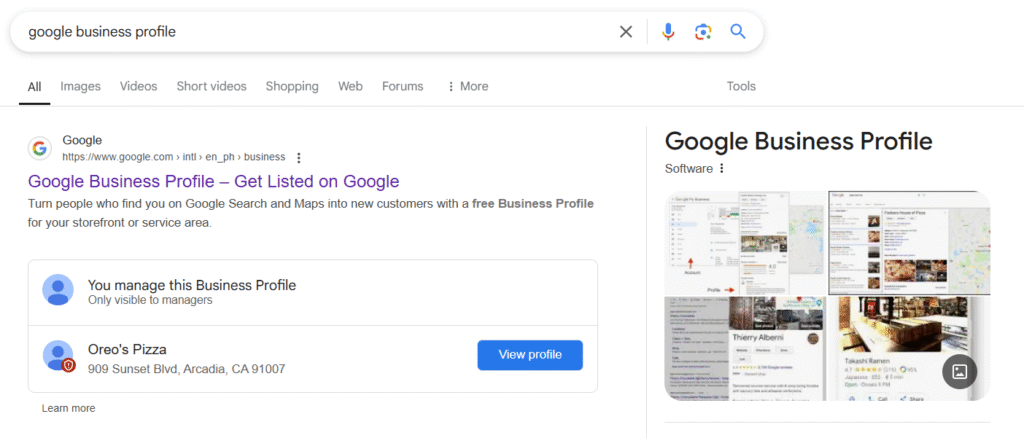
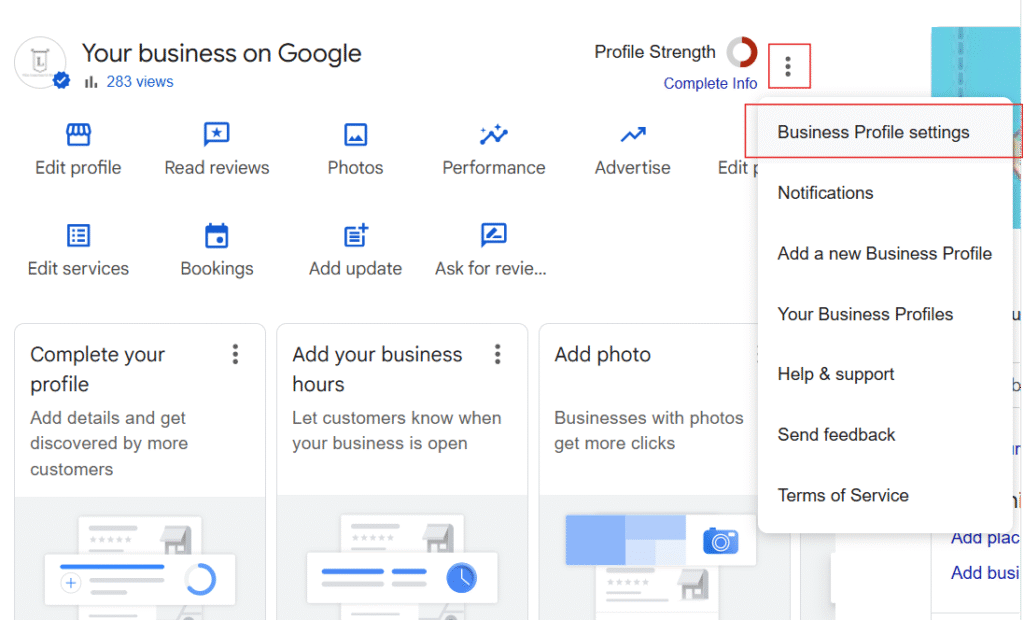
- Click the More Menu → Business Profile settings.
- Select Remove Business Profile → Remove profile content and managers.

- If the business is closed, turn on Mark your business as permanently closed. This won’t erase it from Google instantly, it slowly fades from Maps and Search.
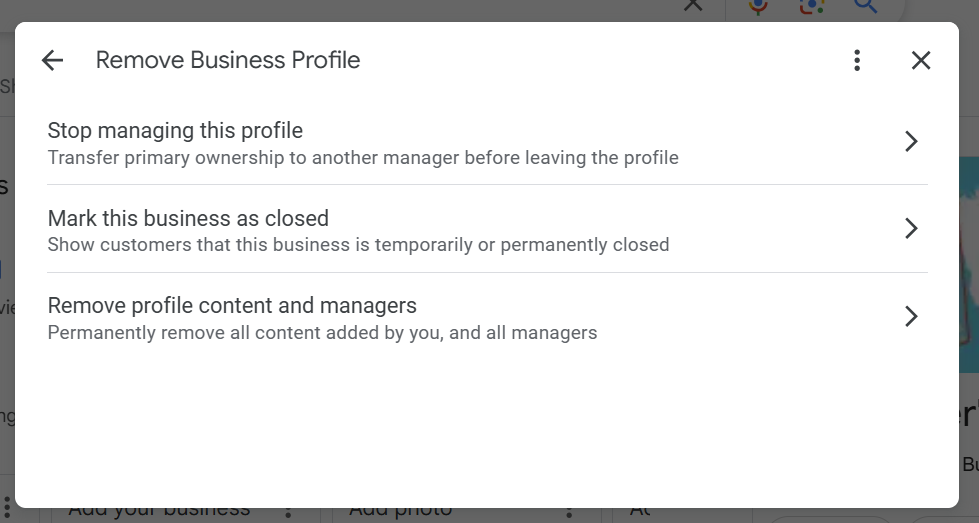
- Hit Continue → Remove → Done.
Removing Multiple Profiles at Once
If you’ve got more than one profile to clear out:
- Sign in to Business Profile Manager with the account linked to all profiles.
- Select the ones you want gone.
- If applicable, mark them permanently closed.
- Click Actions → Remove businesses → Remove.
- If you get an error, you’ll need to remove content and managers from each one manually.
What Happens After Removal
This is where some contractors get caught off guard.
- Your listing might still show in Search or Maps for a while, removal doesn’t always mean instant disappearance.
- All posts, photos, videos, and review replies from owners and managers are gone forever.
- Reviews and user-generated content remain, even after you remove the profile.
- Want to manage the business again later? You’ll need to re-verify from scratch.
Pro Tip: You Don’t Always Have to Delete Yourself
If you’re a primary owner but want someone else to take over, you can transfer ownership instead of deleting. If you’re just a manager or secondary owner and no longer want access, you can remove yourself without affecting the profile.
Handling Duplicates or Old Addresses Without Hurting SEO
Google relies on consistent, accurate business information to decide which listings to show. When there are conflicting entries, the algorithm starts second-guessing your business details, and that hesitation can cost you valuable leads.
The Problem with Duplicates
Duplicate Google Business Profiles may seem harmless, but they:
- Confuse potential customers about where to find you
- Split your reviews and dilute your ranking power
- Make Google doubt the accuracy of your business information
When Google’s trust slips, so does your visibility.
How to Merge Instead of Delete
In most cases, merging is smarter than outright deletion.
- Use Suggest an edit in Google Maps or reach out to Google Business Profile support
- Keep the listing with the strongest SEO history and best reviews
Merging ensures you keep your hard-earned credibility while cleaning up clutter.
Redirect Customers Gracefully
If your business has moved, avoid just hitting “delete.” Instead:
- Mark the old location as Moved
- Update your website, social profiles, and other citations first
This smooth transition protects your local search performance and creates a consistent presence across platforms. A strong local SEO foundation, like the strategies discussed in this contractor SEO guide, can make all the difference when handling changes.
What to Expect After Removal
Your listing usually fades from search within 2 to 3 days. But it’s not always that tidy. Cache and map update delays can stretch visibility out to a couple of weeks. Don’t panic. That’s just how Google rolls sometimes.
- Removed listing – Keywords tied to that profile drop off quickly.
- Merged or updated listing – Often a net gain. You consolidate reviews, citations, and relevance into a stronger, more visible presence.
Let your audience know what’s happening before confusion sets in:
- Post an update on your website or social channels.
- If the profile is still live, pin a temporary note with updated info.
That way people still know where to find and contact you.

Pro Tips for Updating Your Citations After Removal
When you remove your Google Business Profile, you don’t want old or mismatched info floating around. Keeping your name, address, and phone number consistent across the web tells Google, “Yes, we’re legit,” and prevents those annoying ghost listings from popping back up.
Where to Update
Hit the big platforms first: Yelp, Angi, Houzz, and your local chamber of commerce. Then tackle niche contractor directories and supplier listings.
Tools to Speed It Up
If you’d rather not spend your weekend chasing down every listing, tools like Whitespark, BrightLocal, or Moz Local can clean things up fast.
Clean Up Right and Keep Your Google Game Strong
Removing your Google Business Profile isn’t just about deleting stuff. It’s about keeping your online presence sharp, clear, and easy to find. Clean up the old listings the right way and you won’t confuse customers. Plus, your SEO stays solid.
This kind of detail separates contractors who get the calls from those stuck watching competitors take their business. Feeling overwhelmed? You’re not alone.
That’s why having a team who knows contractor marketing inside out saves you time, headaches, and lost leads.
Ready to get your Google Business Profile cleaned up and working for you? Schedule a call with Hook Agency today. Let’s make your online presence as strong as the work you do out in the field.